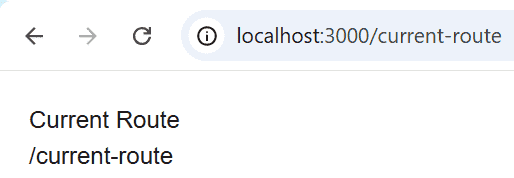
Getting the current route in Next.js allows you to determine the active URL inside your application. In the App Router, the usePathname() hook from next/navigation is the recommended way to access the current route.
- Retrieve the current URL path using usePathname().
- Works in Client Components.
- Useful for active navigation, conditional rendering, and breadcrumbs.
- Recommended for the Next.js App Router.
Note: usePathname() can only be used inside Client Components. Add the "use client" directive at the top of the file before using this hook.
Syntax:
"use client";

import { usePathname } from "next/navigation";

export default function Page() {
  const pathname = usePathname();

  return <h1>{pathname}</h1>;
}
Steps to Implement
Follow the steps below:
Step 1: Create a New Next.js Project
Create a new Next.js application using the App Router by running the following command:
npx create-next-app@latest current-route-appStep 2: Navigate to the Project Directory
Move into the newly created project directory:
cd current-route-appStep 3: Project Structure
Create a new folder named current-route inside the app directory and add a page.js file.
current-route-app/
│
├── app/
│   ├── current-route/
│   │   └── page.js
│   └── page.js
└── ...
Step 4: Display the Current Route
Add the following code to app/current-route/page.js to display the current route using the usePathname() hook.
"use client";

import { usePathname } from "next/navigation";

export default function CurrentRoute() {
  const pathname = usePathname();

  return (
    <main style={{ padding: "20px" }}>
      <h1>Current Route</h1>
      <p>{pathname}</p>
    </main>
  );
}
Step 5: Run the Application
Start the development server using the following command:
npm run devOpen the following URL in your browser:
http://localhost:3000/current-routeOutput: