
Slack is a hugely popular messaging and collaboration service. While you can sign in and use Slack online, it’s much easier to use Slack straight from your desktop. The Slack developers do officially support Linux, and there is a Debian repository. This guide will use that repository to get Slack set up on your Debian system.
In this tutorial you will learn:
- How to Download The Slack Package.
- How to Install The Slack Package on Debian.
- How to Open and Run Slack on Debian.
Software Requirements and Conventions Used
| Category | Requirements, Conventions or Software Version Used |
|---|---|
| System | Debian Stable, Testing, or Sid |
| Software | Slack |
| Other | Privileged access to your Linux system as root or via the sudo command. |
| Conventions |
# – requires given linux commands to be executed with root privileges either directly as a root user or by use of sudo command$ – requires given linux commands to be executed as a regular non-privileged user |
How To Download the Package
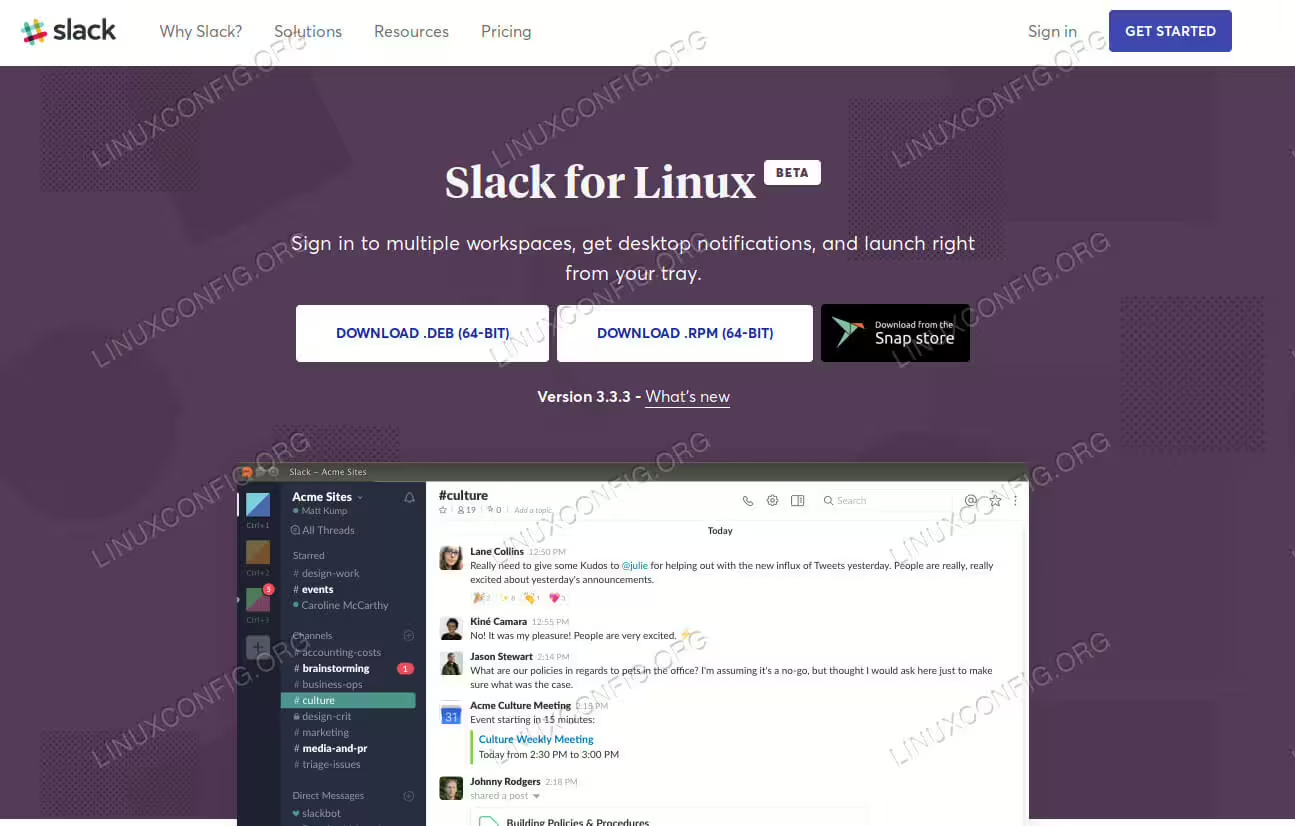
Slack is provided by the developers, but it’s not available in the regular Debian repositories. As a result, you’re going to need to go to the Slack download page, and grab the package. There is some good news. The package sets up a Slack repository on your system, similarly to the way the Google Chrome package works. In the future, Slack will update automatically with Apt.
When you arrive at the download page, you’ll see three buttons to download Slack for Linux. One’s a .deb, and the other two are a .rpm and a Snap. Since you’re working with Debian, the .deb is what you’re looking for. Click on the button to start your download.
How To Install The Slack Package
After you have the package, open up a terminal. If your browser is using the default download directory, that’s where you’ll find the package. Use dpkg with root privileges to install it.
$ sudo dpkg -i ~/Downloads/slack-desktop-X.X.X-amd64.deb
In case you were missing a dependency, you can fix the install up with Apt.
$ sudo apt --fix-broken install
How To Open and Run Slack
Slack is a graphical application. It’ll be available through your desktop environment’s application launcher. Slack’s usually categorized under the “Internet” section of most desktop environments. Locate it, and open it up.
If you’ve used the Slack web application, what opens up should immediately be familiar. That’s because the Linux Slack app is essentially just a portal straight to the web app.

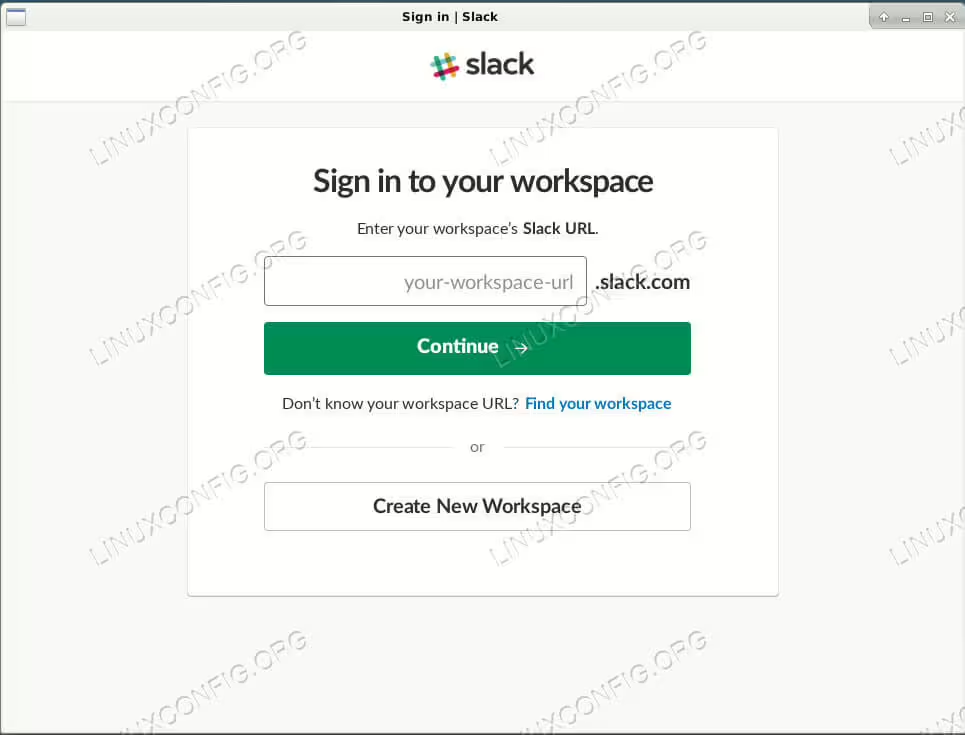
When you open up the Slack app, you’ll immediately be prompted to join a new workspace. Enter the name of the workspace. Then, enter the email address associated with the workspace and the accompanying password.
After you successfully sign in, the left side of the window will populate with channel information, and the main bulk to the right will fill with chats.
Closing the Slack window won’t exit the app. The app will remain running, and you’ll notice a Slack icon in your system tray. The blue dot in the icon will turn red when you have unread messages. You can close Slack the rest of the way by right clicking the icon and selecting the option to exit Slack.
Conclusion
There really isn’t much else to it. You can add as many Slack accounts as you need. Unlike the regular web app, this Slack app won’t bog down and get slow. It’s also important to re-iterate that you won’t have to manually update Slack. The repository was added to your system. You can check it out at /etc/apt/sources.list.d/slack.list.
