Ever found yourself in a situation where you have a document with plenty of images and you need to save images from it? Maybe a selected few or all of them?
Now, manually going to each image and then right click might be the no-brainer but an extremely tedious way to achieve this.
Let me tell you the quickest way to extract all the images from a work document.
Access the menu and go to the Save As option. What you have to do here is to save it as HTML. It will create several web files inside the same folder where your document is, but it will also extract all the images. That's what you want, right?
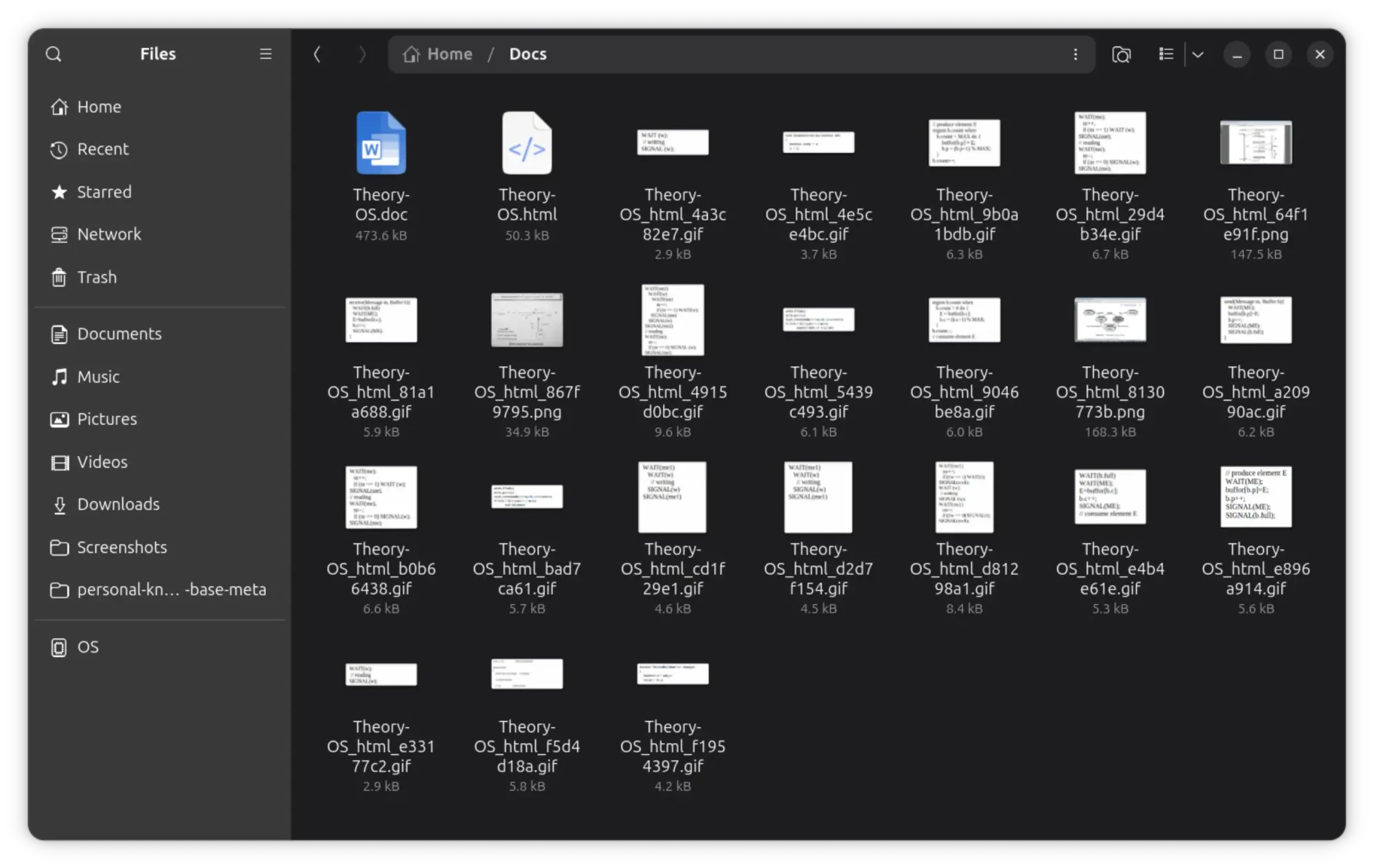
I'll show the details steps for LibreOffice in this quick tutorial.
Extracting all images from a document in LibreOffice
First thing first, create a new folder and move your desired document file in there. Now open the document in LibreOffice.
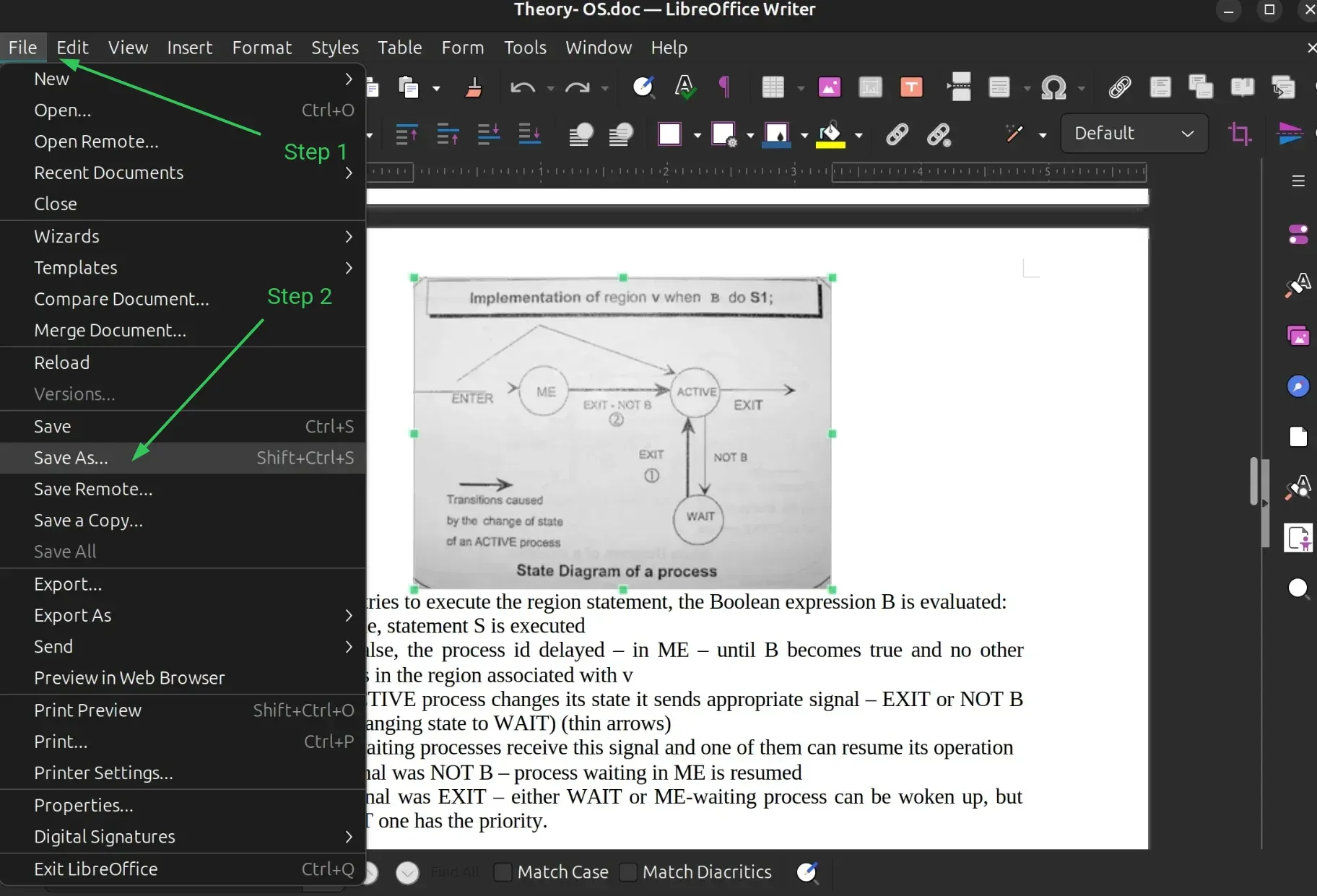
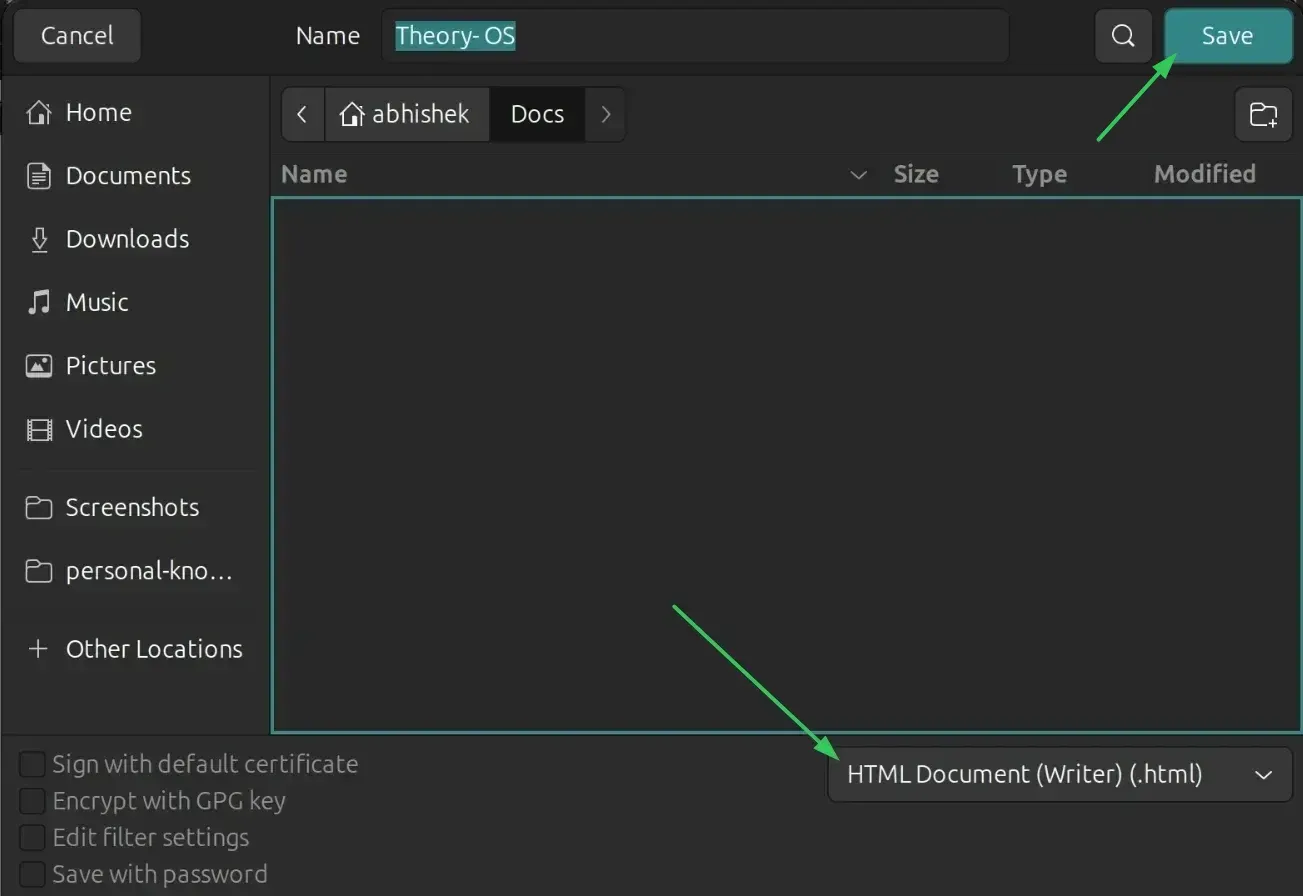
Click on the top file menu and then click on the Save As option. The same can be achieved with Ctrl+Shift+S keyboard shortcut.
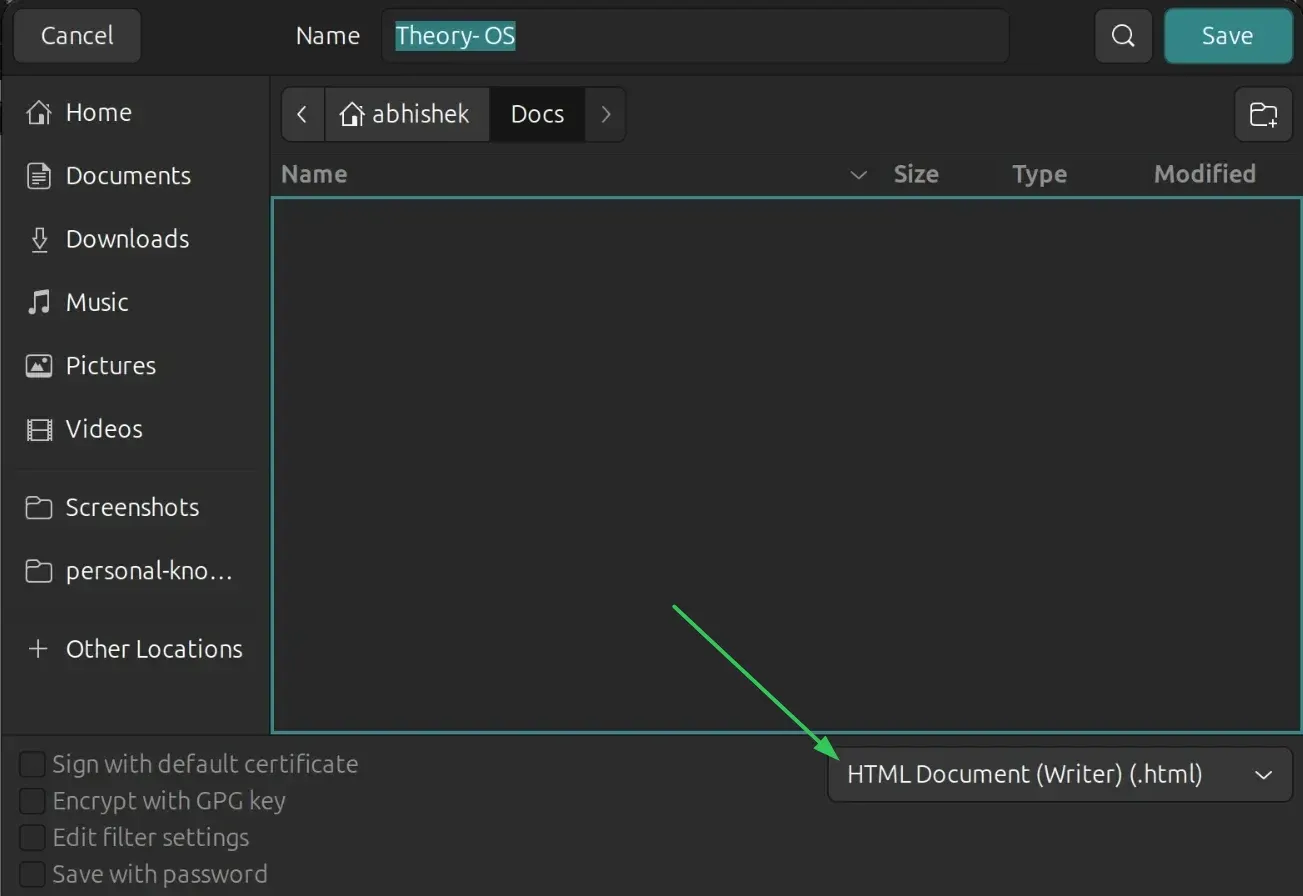
When it gives you the option to save, make sure to change the file type to HTML like this:
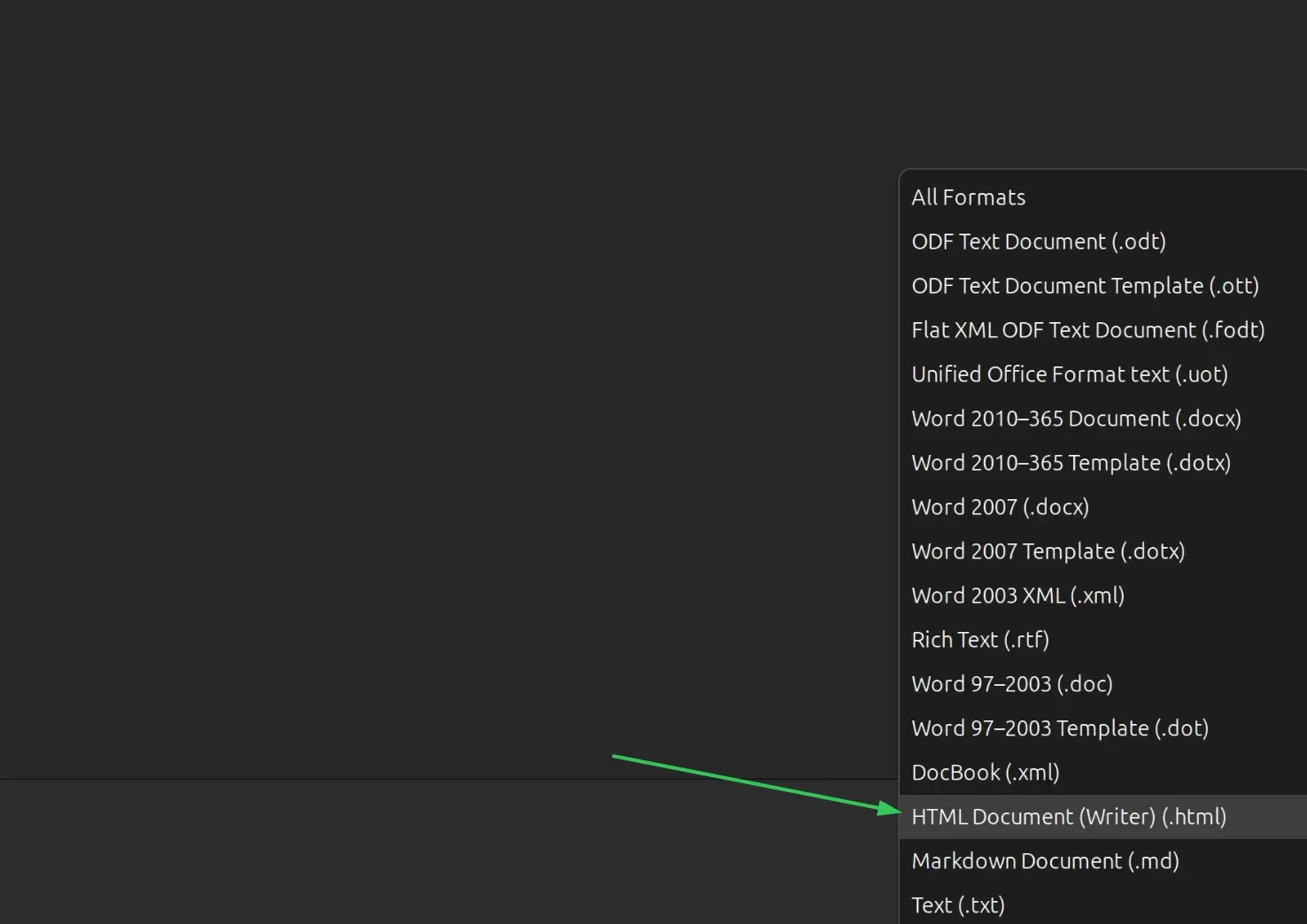
There are actually a number of file format options when you click that. You will have to look for HTML here.
Now that you have ensured that it is saved as HTML, click the Save button.
And then you should see all the images and media files from the document along with a single HTML file in the folder where you saved it. The default location is the same as your original document.
As you can see in the screenshot above, it also saved GIF along with PNG images. There is HTML file and the original doc, too.
This is much better than individually right clicking images and saving them.
And what if you wanted to select only a few images, not all? Well, in that case, you could either manually save the ones you want or extract them all and then only keep the ones you want and remove the rest. It is really up to you.
Another tip, since we are here, if your doc has way too many images and you want to extract a few from the selected chapters only, you can create a new doc and copy paste the chapter in it and save it as an HTML.
Basically, you can utilize this "save as HTML" option in a variety of situations.
Works with other platforms, too
This little trick actually works with most office suites, from MS Office to ONLYOFFICE. It works in Google Docs, too. Consider it a "universal trick" for extracting all images from a document.
I hope you liked this quick little LibreOffice trick. A quick thanks, if you liked it, is always welcome 😄
If this helped you, consider supporting It's FOSS
It's FOSS has been helping people use Linux for the past 14 years. Help us stay independent from big tech. Become a Plus member, enjoy ad-free reading and get 5 eBooks.