Download and usage
-
Download Stockfish from the official page.
Stockfish is completely free. -
Download a GUI
A GUI (Graphical User Interface) is needed to conveniently use Stockfish; both free and commercial GUIs exist.
Some GUIs provide an opening explorer or automatic game analysis. -
Install Stockfish into the GUI
See that guide for several GUIs; if your GUI isn't listed, follow its manual. -
Configure Stockfish settings
Check out our FAQ for recommended settings.
- https://stockfishchess.org/download/
- https://github.com/official-stockfish/Stockfish/releases/latest
A chess graphical user interface allows you to interact with Stockfish in a user-friendly way. Popular GUIs, which can use Stockfish as an engine, are:


| DroidFish (source code) | SmallFish |
|---|---|
 |
 |
| Chessis | |
 |
| Chessbase | Hiarcs |
|---|---|
 |
 |
| Shredder | |
 |
Note
If you don't want to download a GUI, you can also use some of the available online interfaces. Keep in mind that you might not get the latest version of Stockfish, settings might be limited and speed will be slower.
|
Lichess Change settings |
Chess.com Change settings |
|---|---|
 |
 |
| ChessMonitor | Chessify |
 |
 |
| DecodeChess | |
 |
Engines tab > Add new > Install Stockfish

-
Engines > Install New Engine...

-
Select and open the Stockfish executable

-
Engine > Choose engine...

-
Select and open the Stockfish executable

-
Log in with Lichess


-
Click the Install Stockfish button

-
Go to the Lichess analysis page
-
Select the engine from the engine list

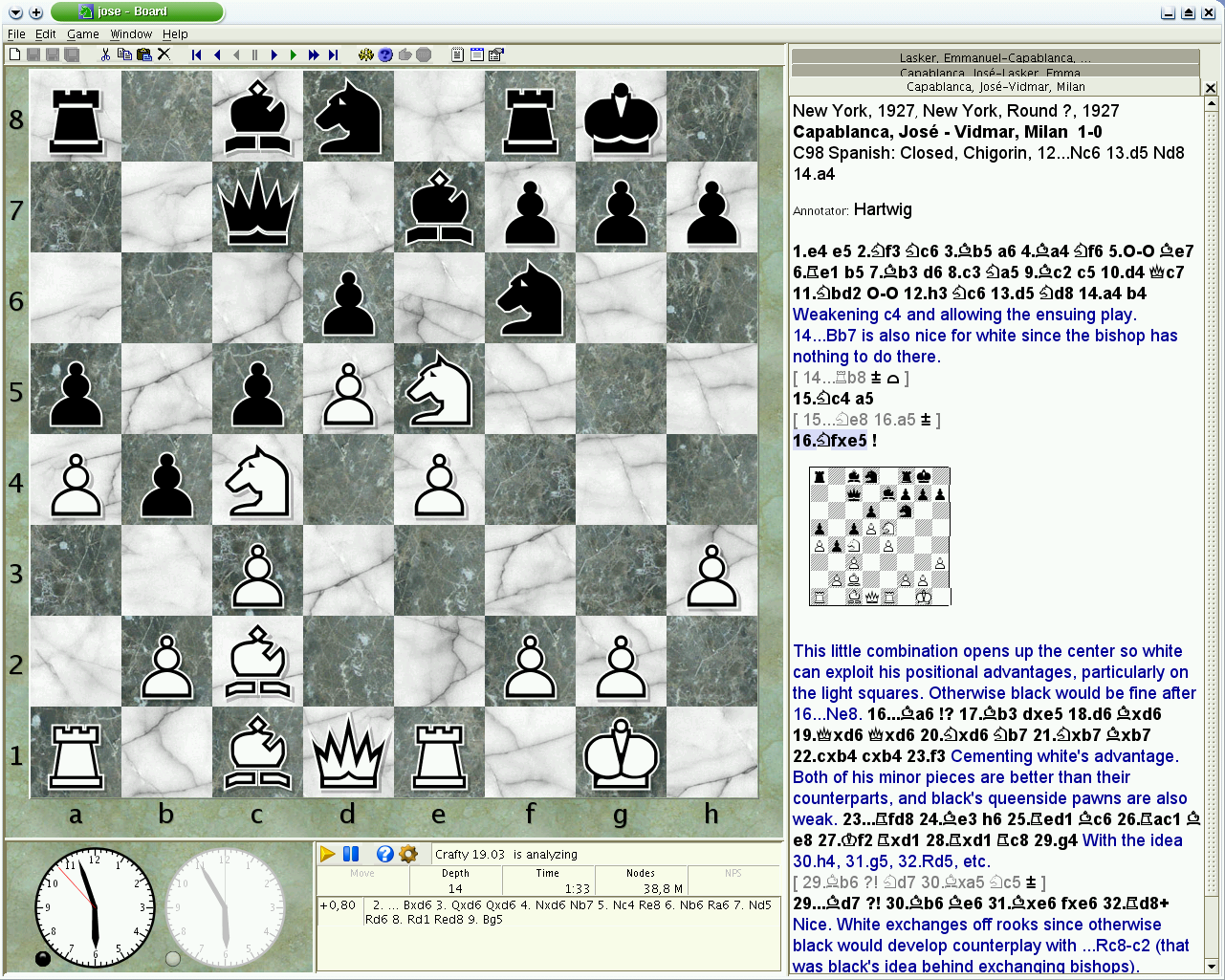
Stockfish is already bundled with jose. To enable it for play and analysis do:
- Edit > Options (F9)
- select the 'Engine' tab
- select Stockfish in the list of engines
- below, you can edit all the engine parameters
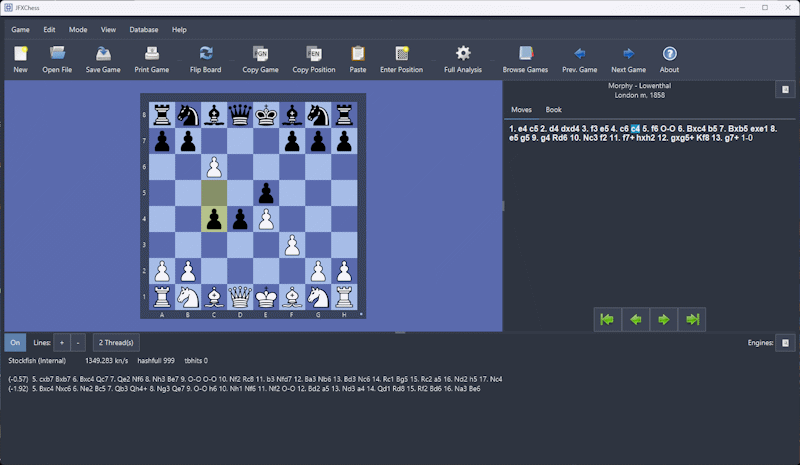
Stockfish is already bundled with jfxchess. To add another version of Stockfish select
- Menu
Engine>Engine Settings - click on
Add - select the
stockfish.exeof your choice - on
Edit Parametersyou can modify all uci engine parameters
Note
Please check our FAQ guide to set the optimal settings.
Note
First uncheck these two settings

Right click in the engine name > Configure


Open the Engine menu

Select Stockfish in the engines tab

or open the engine settings in the Analysis board

Open the engine settings

Click the settings button in the analysis page


