

Enable intelligent model routing
- In the prompt box, select Agent Mode. The menu shows the available modes: Free, Power, and Max.
- Select Power or Max, then find the Primary model section. Its label changes with the selected mode, such as Primary Max model.
- If the primary model is already Auto, intelligent model routing is enabled. If a specific model is selected, open the primary model menu and select Automatically choose.
Let the task guide the model
Intelligent model routing is useful when you want Replit to handle model selection as the work changes. A focused request can use a lower-cost model, while a complex task may need a more capable model. In Power Mode or Max Mode, builders on Core and Pro can select an available model manually instead.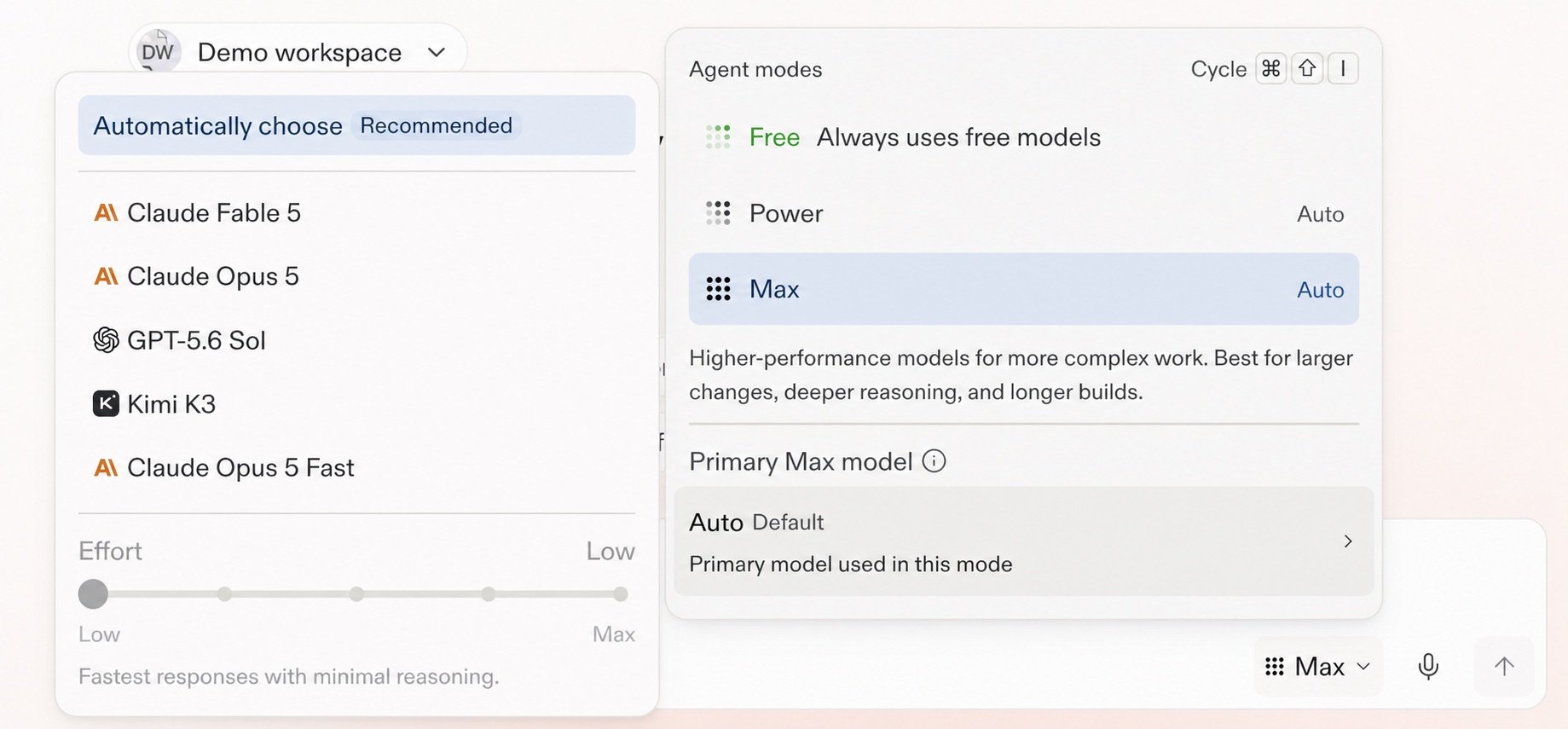
Intelligent model routing, model selection, and Effort in the Agent settings.
Learn more
Intelligent model routing reference
Learn how Replit selects a model and when manual selection is available.
Open the reference →
Choose a model
Select a primary model and set its Effort when you need more control.
Continue →
